
Selecting the menu item “Products and markets” in the left bar section “BUY” all active markets available in Loonity will be displayed on the right part of the screen. Don’t forget that the left bar can be compressed to the left for a full screen view through the specific arrow symbol.
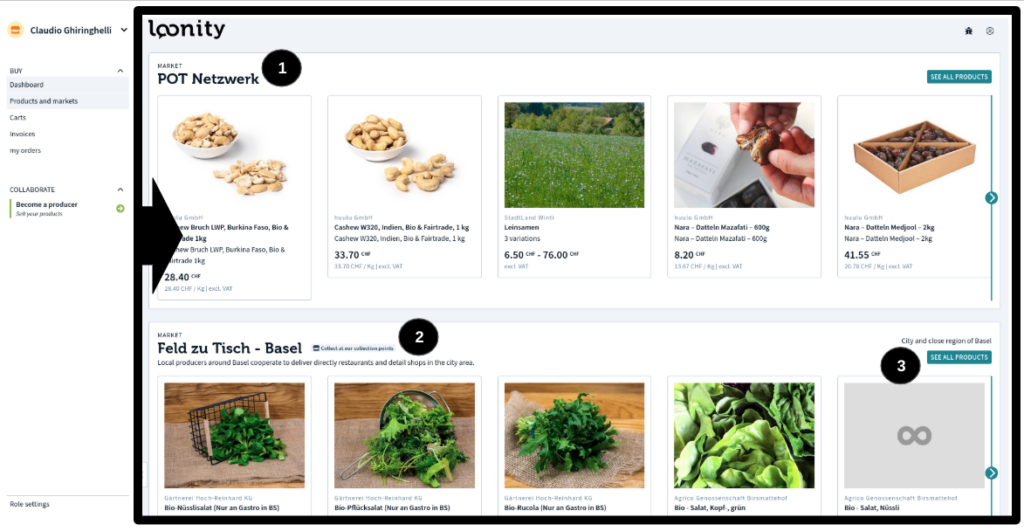
Every market is presented with its name (1) and with a preview of the last modified products that are on sale. In the short description just above the name the market has the possibility to explain the type of customers (B2B or B2C) and of service it’s offering. A market can offer a door delivery service in a predefined area identified through ZIP codes, a distribution through the utilization of pick-up points where customers need to collect the deliveries or a combination of both options. The distribution modalities are shortly described with the specific icon next to the market name (2). On the right of every single market bar a customer can find a short indication about the area served and the button “see all products” to access the market shop (3).
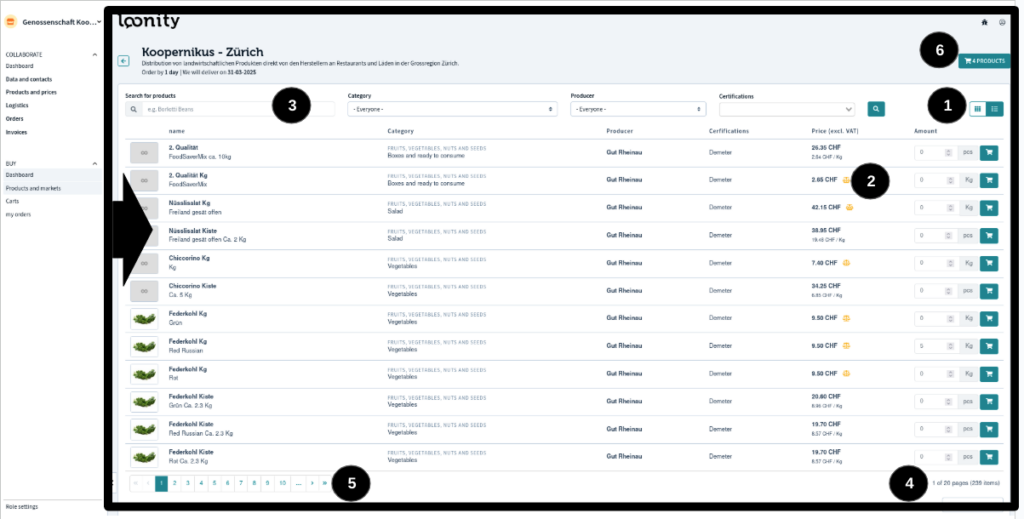
Once entered into a market shop the user can see all products that are for sale displayed in lines. Different variants of the same product are displayed one below the other, while changing to a card view (1) only one card per product will be displayed and the variant can only be chosen in the single product description card. Product variant prices are distinguished with a wage symbol (2) indicate a price per quantity unit that will be invoiced precisely only after preparation by the producer. On top of the product lines different filters (3) can be activated for a faster search. On the bottom right of the page a selector (4) allows to define the number of products shown and on the left (5) the user can navigate through the entire assortment. Once the wished selection is completed the cart button (6) allows to proceed with the ordering process.
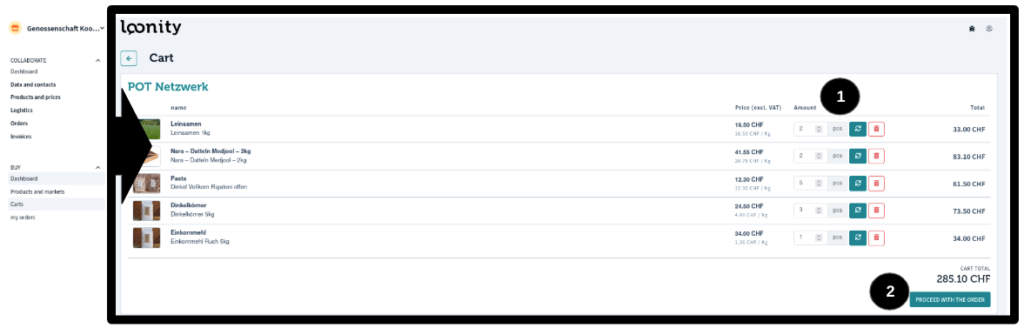
Single products and quantities can be adjusted (1) in the cart view before proceeding to the check-out (2)for final order confirmation.
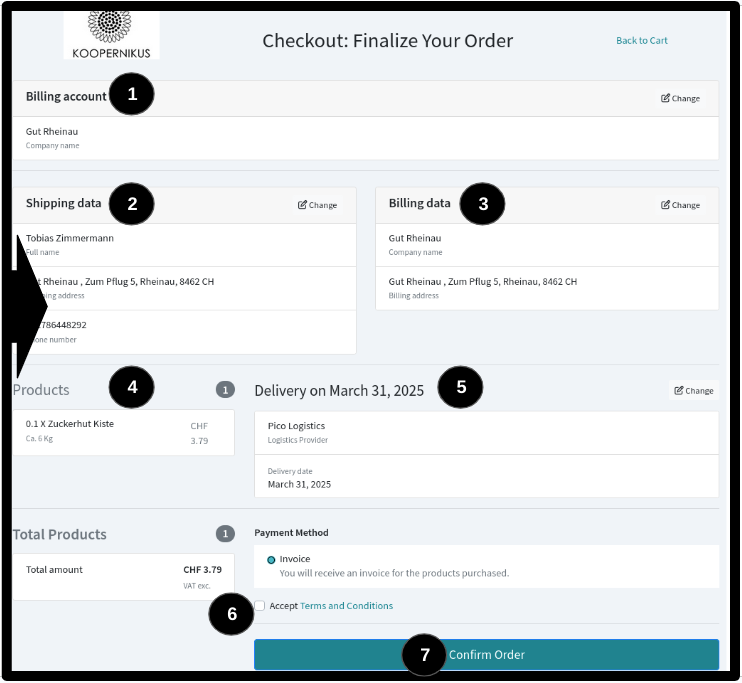
Once reached the checkout the user still has the possibility to modify the billing account (1) in case it’s not correct and than set or check the shipping (2) and the invoicing address (3). The products (4) that are being ordered are in one or different lists in case of different delivery conditions (5). On the bottom of the check-out page general terms and conditions (6) need to be accepted, before the final order confirmation button (7).

 English
  Deutsch (Schweiz)
  Italiano